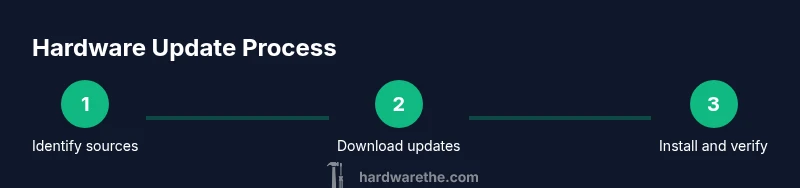
How to Check for Hardware Updates
Learn how to check for hardware updates across drivers, firmware, and BIOS/UEFI. Find official sources, verify versions, and safely apply updates to keep devices secure and performing well.


This guide shows you how to check for hardware updates across drivers, firmware, and BIOS/UEFI. You’ll learn official sources, how to verify versions, and how to prepare safely before applying updates. By the end, you’ll know how to keep devices current and secure. This article is suitable for DIY enthusiasts and technicians.
Why hardware updates matter
Keeping hardware up to date is essential for performance, security, and reliability. Manufacturers release updates to fix bugs, close security gaps, and add compatibility with newer software and peripherals. While drivers handle daily communications between hardware and the operating system, firmware runs closer to the hardware itself, and BIOS/UEFI controls foundational aspects of your system. Skipping updates can leave devices vulnerable to exploits, cause instability, or limit your hardware from taking advantage of modern software features.
According to The Hardware, a disciplined approach to updates reduces unexpected crashes and improves hardware longevity. The team also notes that firmware improvements often address subtle issues that drivers cannot fix, such as microcode adjustments for CPUs or GPU firmware to prevent throttling. Regular checks also help you spot end-of-life notices so you can plan replacements before failures occur. In corporate environments, IT policy typically requires documented update cadences, but for DIYers, a simple monthly or quarterly review can deliver most benefits with minimal risk.
Key takeaways from 2026 guidance include avoiding outdated firmware, using official sources, and backing up data before any firmware or BIOS changes. In the next sections, you’ll learn how to identify update types, locate legitimate downloads, and apply updates safely across Windows, macOS, and Linux platforms. This structured approach makes hardware maintenance approachable for DIY enthusiasts.
Types of hardware updates
How to check for updates on Windows
How to check for updates on macOS
How to check for updates on Linux
Best practices for verification and rollback
Troubleshooting common issues and safety tips
Tools & Materials
- Computer or device with internet access(Needed to download updates and verify versions)
- Vendor update utility or firmware updater(Official tool from the hardware maker)
- Backup storage (external drive or cloud backup)(Back up important data before firmware/BIOS changes)
- Administrative privileges(Run as administrator/root to apply updates)
- Power stability (AC power for laptops/desktops)(Keep device on AC during updates to avoid bricking)
- USB flash drive (optional for offline updates)(Use for offline or BIOS/firmware updates if required)
Steps
Estimated time: 60-120 minutes
- 1
Identify update sources
Begin by listing your device models and checking official vendor pages for the exact update family. This ensures you’re looking at the correct drivers, firmware, and BIOS/UEFI files. Avoid third‑party download sites to minimize risk. Pro tip: bookmark the vendor’s support page for your model.
Tip: Always confirm the exact model and revision before downloading any update. - 2
Record current versions
Before applying updates, note current driver, firmware, and BIOS/UEFI versions. This helps you verify after the update and provides a rollback reference if something goes wrong. Use system information tools or vendor utilities to capture this data.
Tip: Take screenshots or save a text file with version stamps. - 3
Download the official updates
From the vendor’s page or updater tool, download the exact updates matching your model and OS. Do not extract firmware or drivers from non‑official sources. Verify file integrity if a checksum is provided.
Tip: If a checksum is available, verify it with the published hash. - 4
Prepare your system
Close unnecessary applications and connect to power. If updating a BIOS/firmware, ensure a stable environment and disable any battery‑sapping features that could interrupt the process.
Tip: Plug the device into a reliable power source or use a UPS if possible. - 5
Apply the update
Run the official updater or flash the firmware following vendor instructions precisely. Do not interrupt the process once it starts, and avoid multitasking that could cause a crash.
Tip: Do not reboot or power off during installation unless explicitly instructed. - 6
Verify the update
After completion, recheck the version numbers and run a basic sanity test of the hardware (e.g., device boot, peripheral detection, performance checks). Compare against the targeted version to confirm success.
Tip: If the update fails, consult the vendor guide for rollback steps. - 7
Document changes and plan next checks
Record updated versions and set a schedule for future checks (e.g., quarterly). Document any observed improvements or issues for future reference.
Tip: Keep a running log to simplify support in case of future problems. - 8
Prepare for rollback if needed
If issues arise, use vendor‑provided rollback methods or restore from the backup you created. Do not attempt ad‑hoc fixes that could destabilize the system.
Tip: A tested rollback plan minimizes downtime. - 9
Review security and compatibility
After updates, review software compatibility and security settings. Ensure security software recognizes updated drivers and firmware, and that critical peripherals still function correctly.
Tip: Run a quick compatibility check with essential apps before resuming full use.
FAQ
What is included in a hardware update?
Hardware updates include drivers, firmware, BIOS/UEFI, and sometimes microcode updates. They improve stability, security, and compatibility. Always verify you are downloading the correct files for your model and OS before applying.
Hardware updates include drivers and firmware, plus BIOS or microcode updates when needed. Always verify the exact model before updating.
How often should I check for updates?
Check for updates on a regular basis, such as monthly or after receiving notices from the manufacturer. Establishing a routine helps catch issues early without interrupting operation.
Regular checks—monthly or when the manufacturer notifies you—keep hardware running smoothly.
Can I update hardware offline?
Yes. Some devices support offline updates via USB drive or bootable media. Download the updates on another computer and transfer them securely to the target device.
Yes, offline updates are possible using USB or boot media, as long as you get the right files.
What should I do if an update fails?
If an update fails, stop the process, power cycle if instructed, and use the vendor’s rollback or recovery options. Restore from a backup if needed and reattempt updates after troubleshooting.
If it fails, follow the vendor’s recovery steps and restore from backup if needed.
Are firmware updates risky?
Firmware updates carry some risk of failure that can render hardware unusable if interrupted. Use power protection and follow official instructions precisely.
Firmware updates can fail if interrupted, so power protection and careful following of instructions are essential.
Do I need to update drivers separately from firmware?
Yes. Drivers manage OS‑level communication, while firmware controls the hardware itself. Update both as needed to ensure full compatibility and performance.
Drivers and firmware serve different roles; update both when updates are available.
Watch Video
Main Points
- Back up before updates
- Use official sources only
- Verify versions after updates
- Document changes for future reference
- Check compatibility of peripherals after updating