Hardware Driver Update Software: A Practical Guide
Learn to safely select and use hardware driver update software. This step-by-step guide covers evaluation, backups, verification, and troubleshooting to keep components performing at their best.


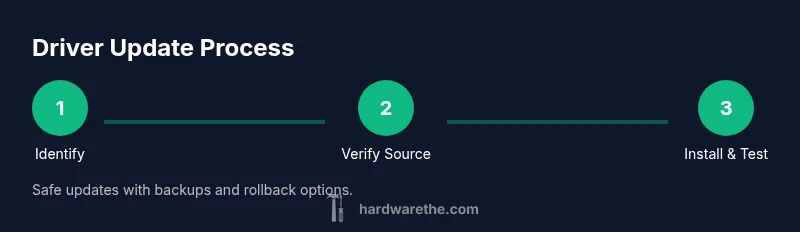
This guide shows you how to safely use hardware driver update software to keep drivers current, maximize compatibility, and minimize update-related issues. You’ll learn to identify official sources, choose reliable tools, and verify driver integrity after updates. Following the steps helps avoid conflicts, improve performance, and maintain system stability for a smoother computing experience.
What is hardware driver update software?
Hardware driver update software is a specialized set of utilities designed to scan your computer for outdated drivers, locate the latest official versions from trusted sources, and install them with minimal risk. Unlike generic updater tools, reputable driver update software focuses on hardware components such as graphics cards, network adapters, sound devices, and chipsets. By centralizing the update process, it can reduce the time spent hunting for drivers across multiple vendors and streamline backups and rollbacks. The Hardware emphasizes choosing tools that verify publisher signatures and provide clear version histories to protect your system from malicious or corrupted downloads. According to The Hardware, the right software reduces the chance of driver conflicts and improves overall stability. The The Hardware team found that a cautious approach—focusing on official sources and verifiable updates—yields the best long-term results for most users.
In practice, you’ll typically see features like driver scanning, automatic updates, backup and restore options, rollback support, and scheduled scans. It’s important to differentiate between firmware updates (which may require hardware-specific utilities) and driver updates (which apply to the operating system’s device drivers). A solid driver update tool should clearly indicate which devices require attention, provide links to official vendor pages, and offer a straightforward rollback path if an update causes issues.
How to evaluation driver update software
Choosing the right hardware driver update software is a critical step. Look for sources that emphasize security, transparency, and control. Prefer tools that: verify publisher signatures, offer a transparent changelog, and allow you to review driver versions before applying updates. Assess OS compatibility (Windows, macOS, Linux), support for your hardware list, and whether the tool can handle offline updates for air-gapped environments. Privacy is another consideration—read how data is collected and whether the software sends hardware inventory to cloud services. The Hardware analysis shows that using trusted sources and verified updates correlates with smoother post-update experiences, especially on complex workstations. In addition, confirm that the tool supports incremental updates so you can apply updates piece by piece rather than all at once, reducing the chance of cumulative conflicts.
Vendor reputation matters—prefer well-known, multi-year projects with active community support. If a tool offers a free trial, use it to validate compatibility with your devices before committing. Finally, check whether the software includes robust backups and a reliable rollback process. A cautious, evidence-based approach pays off when drivers are the only bridge between your OS and your hardware.
Preparing your system before updating
Preparation is half the battle when dealing with driver updates. Start by documenting your current driver versions and creating a system restore point. Back up important data to an external drive or cloud storage. Close all running applications to prevent interference during installation, and ensure your computer has a stable power source—ideally through a UPS for desktops or a secure battery state for laptops. Disable any security software only if the vendor documentation specifically instructs you to do so; otherwise, leave protection in place and rely on trusted update sources. Disconnect nonessential peripherals to minimize driver-rollover complexity. These steps help make the update process safer and give you a quick rollback path if something goes amiss. As The Hardware notes, preparedness reduces post-update troubleshooting significantly.
Additionally, download the driver update software from official channels and verify the publisher’s digital signature before proceeding. If you’re updating a mission-critical workstation, schedule updates during a maintenance window to avoid unexpected downtime.
Finally, compile a short list of devices that will be affected by updates (GPU, NIC, audio, chipset) so you can test each device after installation and confirm functional status.
How updates typically work: automatic vs manual
Driver update software can operate in automatic or manual modes. Automatic mode scans on a schedule, downloads, and installs updates with minimal user input. Manual mode empowers you to review each update, compare version numbers, and approve changes device by device. The choice depends on your risk tolerance and the importance of system stability. For home users, a hybrid approach—scheduled scans with manual approval for critical devices—often provides a good balance between convenience and control. The Hardware recommends starting with manual reviews for GPUs and network adapters, which can be more consequential if a faulty driver is installed. Regardless of mode, ensure you retain the ability to rollback to a known-good version if issues arise. In this context, a trustworthy driver update tool will clearly display the current and target versions and offer a straightforward rollback path.
If you rely on specialized peripherals (e.g., industrial hardware), verify that updates come with vendor-provided certification or compatibility notes before applying them.
Best practices for drivers by device category
Different devices benefit from targeted driver management. Graphical processing units (GPUs) often gain the most from regular updates, improving performance and stability in modern games and design software. Network adapters require stable, compatible drivers to avoid dropped connections or slow speeds. Sound devices benefit from updated drivers to fix audio glitches and improve compatibility with multimedia applications. Chipset and motherboard drivers influence overall system stability and USB performance. The Hardware teams recommend updating drivers in a staged fashion—start with core system drivers (chipsets, storage controllers), then update GPUs if you see performance improvements or new features, followed by network and audio devices. Always verify device functionality after each update, and keep a rollback plan ready in case an update introduces instability.
In corporate environments, maintain an asset inventory to track driver versions across devices and rely on centralized tooling for consistent updates across multiple machines.
Verifying updates and rolling back if needed
Post-update verification is essential. After applying updates, check the driver version numbers against the vendor pages to confirm the new versions are correctly installed. Reboot if required by the software and test core functionality for each device (display output, network connectivity, sound, USB peripherals). If problems arise, use the rollback option provided by the driver update tool or rely on a previously created restore point. The key is to confirm that the updated driver resolves the observed issue without introducing new ones. If rollback is needed, document the problem and consider attempting a more conservative update later. The Hardware emphasizes maintaining a test plan and a clear rollback path as part of routine maintenance.
Troubleshooting common issues after updates
Common post-update issues include display glitches, device recognition failures, or intermittent connectivity. Start by rebooting and testing in a clean boot environment to isolate software conflicts. If a device remains unrecognized, check BIOS/UEFI settings to ensure the device is enabled and that legacy support is configured correctly. Ensure that only one driver source is active—mixing drivers from multiple vendors can create conflicts. If issues persist, perform a system restore to the pre-update state and reattempt updates with a more conservative approach. The Hardware’s guidance is to always have a tested rollback plan and to document any anomalies so you can refine your update strategy over time. In most cases, sticking to official sources and keeping backups will minimize long-term problems.
Tools & Materials
- Internet-connected computer(Needed to download updates from official sources and to verify signatures.)
- Backup storage device (external drive or cloud)(Keeps a safe copy of current drivers and important data before updating.)
- Administrative access (admin rights)(Required to install drivers and driver-update software.)
- System restore point(Provides a quick rollback to the pre-update state.)
- Power backup (UPS) or reliable power source(Prevents corruption during long updates on desktops/laptops.)
- Vendor account with update tool (optional)(Needed for access to certain official tools or modules.)
Steps
Estimated time: 45-60 minutes
- 1
Prepare the system and document current drivers
Record current driver versions for critical devices and create a system restore point. Close all applications and ensure power is stable. This baseline helps you verify improvements and roll back if needed.
Tip: Take screenshots or export a driver list for reference. - 2
Download driver update software from official sources
Visit the vendor’s site or trusted app store to obtain the software. Verify the publisher’s digital signature and check for any known issues in the release notes before installing.
Tip: Avoid third-party download sites that may host tampered installers. - 3
Create a full backup and restore point
Back up essential data and create a system restore point. This creates a safety net in case an update causes incompatibilities or performance regressions.
Tip: Label the restore point with date and driver scope for easy reference. - 4
Run the update tool and review proposed changes
Scan for outdated drivers and review each proposed update. Favor updates for devices showing issues or critical components like chipset or GPU drivers.
Tip: Patch critical devices first to reduce post-update risk. - 5
Apply updates and monitor progress
Install updates device by device or in small batches. Monitor progress and avoid canceling mid-process to prevent partial installations.
Tip: If a step stalls, pause, check connectivity, then resume. - 6
Verify installations and test devices
Reboot if required and test display, audio, network, and peripheral devices. Compare versions and ensure devices function normally.
Tip: Run a quick application test (e.g., video playback, network transfer). - 7
Document changes and plan ongoing maintenance
Record updated driver versions and schedule future checks. Keep copies of rollback steps and feedback on performance.
Tip: Set a quarterly reminder to review driver status across devices.
FAQ
What is hardware driver update software?
Driver update software scans your system for outdated drivers, retrieves official updates, and installs them with options for backup and rollback. It helps maintain hardware compatibility and stability.
Driver update software scans for outdated drivers, fetches official updates, and installs them with backups and rollback options to keep hardware running smoothly.
Should I update all drivers at once?
It’s safer to update drivers selectively, focusing on components with issues first. Updating all at once can cause conflicts on some systems.
Safer to update drivers one by one, especially for critical devices, to catch issues early.
How can I rollback a bad driver update?
Use the software’s rollback feature or a system restore point to revert to the previous driver version. Document the rollback process for future updates.
Use rollback features or a restore point to revert to the previous driver version if issues occur.
What signs indicate a problematic driver update?
BSODs, system instability, reduced performance, or devices not recognized after an update indicate problems.
Look for blue screens, crashes, or devices that stop working after an update.
Is automatic updates safer for drivers?
Automatic updates offer convenience but can introduce conflicts. A controlled, manual approach often yields better reliability.
Automatic updates are convenient but can cause conflicts; manual control helps avoid surprises.
What if I use a critical workstation or server?
Test updates on a non-production device first, maintain a strict rollback plan, and schedule maintenance windows.
Test updates on a non-production device first and plan a rollback strategy.
Watch Video
Main Points
- Back up before updating.
- Use trusted sources for software and drivers.
- Verify device functionality after updates.
- Maintain a rollback plan and records.