Schlage Encode Smart WiFi Deadbolt: A Practical How-To
Learn how to install and configure the Schlage Encode Smart WiFi Deadbolt for secure, keyless access. This guide covers planning, wiring-free setup, Wi‑Fi pairing, daily use, and troubleshooting with practical tips for DIY enthusiasts.


You will install and configure the Schlage Encode Smart WiFi Deadbolt to enable remote access, keyless entry, and smartphone control. Core requirements include a compatible door, fresh batteries, and a stable Wi‑Fi network. This guide covers prep, installation, Wi‑Fi pairing, and day‑to‑day use.
What is the Schlage Encode Smart WiFi Deadbolt?
According to The Hardware, the Schlage Encode Smart WiFi Deadbolt is a powerful option for homeowners who want keyless convenience without adding a separate hub. Built to integrate with common home networks, it lets you lock or unlock from your phone, share temporary access codes, and monitor activity from an app. In this overview, you’ll discover how the built‑in WiFi connects directly to your network and how the keypad or entry surface enables quick access without fishing for keys. Before you start, confirm you have a standard door with a compatible bore, a battery‑powered lock, and a stable, private Wi‑Fi connection. The goal is a reliable, responsive experience that reduces the need for spare keys while maintaining security. You’ll find practical tips and a prep checklist to help you decide if this model fits your home. The Hardware emphasizes that direct WiFi connectivity can simplify updates and troubleshooting for DIYers.
Why choose a WiFi-enabled deadbolt?
WiFi‑enabled deadbolts offer more than remote locking; they enable activity logs, user management, and integration with voice assistants and smart home ecosystems. With the Schlage Encode Smart WiFi Deadbolt, you can generate access codes for family members or guests and revoke them as needed, all without handing out physical keys. The appeal is simplicity and control: no hubs to manage, straightforward setup, and compatibility with common smartphones. You trade off battery maintenance and the need for a strong, private network, but the payoff is convenience and visibility into entry activity. For DIYers, this combination supports a cohesive home automation strategy and easier maintenance. If you’re upgrading from an older deadbolt, you’ll appreciate streamlined installation and remote code management that saves time and effort.
Installation planning: tools, door prep, and safety
Before you reach for a screwdriver, plan the project: verify door compatibility, choose the right bore size, and gather the required tools. Start by removing any existing hardware and inspecting the door edge for damage or irregularities. Ensure fresh batteries are on hand and that the door frame aligns with the strike plate. Check the door thickness and bore alignment; some installations require minor adjustments or a different strike plate. Mark drilling points with a pencil and protect the door surface with painter’s tape during drilling. A calm, well‑lit workspace reduces mistakes and accelerates progress. Prep also means deciding how you’ll manage codes and backups, so you’re ready once assembly begins. Thorough planning reduces the risk of misalignment and ensures long‑term reliability.
How it connects to Wi‑Fi and your smart home
Connecting the lock to Wi‑Fi and your smart home ecosystem is usually straightforward but worth a quick check of your network. Ensure your router supports the lock’s security requirements and that the Wi‑Fi signal near the door is strong during setup. The Encode lock connects directly to your home network, enabling firmware updates, remote control, and real‑time notifications. During setup, you’ll use the companion app to pair the device, create an administrator account, and configure access codes and auto‑lock preferences. Some users opt to enable voice assistant commands, while others prefer app‑based control only. After pairing, perform a few test actions from the app and keypad to confirm responsiveness and reliability.
Daily use, codes, and maintenance
With the lock in daily service, you’ll manage access codes, monitor activity, and perform routine maintenance. Train household members on using codes and the keypad, and update codes as needed when people move in or out. The app sends battery and activity alerts, so you can respond before problems arise. Battery life varies with use, so keeping spare batteries and a replacement schedule helps prevent downtime. Periodically check for firmware updates and apply them when available. Regularly review connected devices and permissions to minimize security gaps. The goal is to maintain a smooth, secure experience without slowing daily routines.
Security best practices and common mistakes
Security with a WiFi deadbolt hinges on strong access control and proper installation. Use unique codes for each user and avoid sharing them verbally or via insecure channels. If the door edge is damaged or misaligned, address it promptly—misalignment can prevent the deadbolt from latching. Keep the surrounding area clean to ensure smooth operation and protect weather seals from wear. Avoid exposing the lock to extreme temperatures, moisture, or direct sunlight, which can degrade components over time. If connectivity issues persist, verify your router settings and consider relocating the router or adding a signal extender near the door. Regular inspections help catch wear before a failure occurs.
Troubleshooting common issues and quick fixes
Start troubleshooting with a quick battery and device check: ensure batteries are correctly installed and new. If pairing fails, restart the router and the lock, then retry the pairing flow. For code issues, verify the administrator code and ensure codes are saved correctly in the app. If the lock won’t latch, re‑check door alignment and strike plate installation. If you experience persistent connectivity problems, verify network credentials and restart devices. When in doubt, consult the official setup guide and The Hardware recommendations for step‑by‑step troubleshooting strategies.
Tools & Materials
- Phillips head screwdriver(for screws on interior components and strike plate)
- Flathead screwdriver(optional prying/adjustment during prep)
- Measuring tape(to verify door edge bore and alignment)
- Drill with appropriate bits(to create or widen bore hole if needed)
- Chisel(for minor wood refinements)
- Pencil(mark drilling/align points)
- AA batteries(to power the lock)
- Masking tape(protects surface during drilling)
Steps
Estimated time: 60-90 minutes
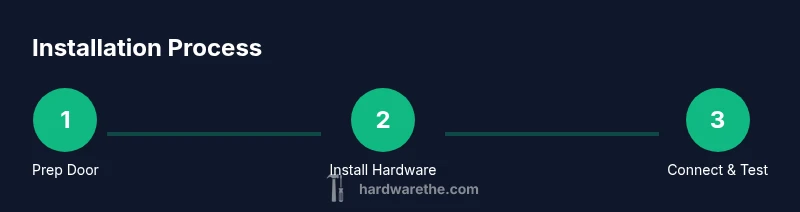
- 1
Remove existing hardware and prep the door
Power down any nearby electronics and remove the old lock’s faceplate. Inspect the bore and edge for damage, then clean dust and debris. Mark the screw holes and alignment points with a pencil, using masking tape to protect the surface. This step ensures a clean baseline for precise alignment.
Tip: Take photos of the old setup before removal so you can compare later if needed. - 2
Mount exterior and interior assemblies
Attach the exterior and interior components to the door following the manufacturer’s alignment marks. Start with the exterior hardware, then secure the interior plate, ensuring the latch mechanism sits square in the bore. Do not overtighten screws to avoid warping the door edge.
Tip: Check the alignment visually from both sides as you tighten to prevent binding. - 3
Install the latch, strike plate, and alignment checks
Insert the latch mechanism and fit the strike plate into the door frame. Verify that the bolt fully extends into the strike plate when the handle or keypad is operated. Test multiple times to confirm smooth operation and good latch alignment.
Tip: If the bolt misses the strike plate, adjust the strike plate position slightly and retest. - 4
Install batteries and perform a mechanical test
Insert fresh AA batteries and perform a manual lock/unlock test using the key or inner turn. Confirm the keypad lights, audible feedback, and motor response. This ensures the device powers up correctly before connecting to Wi‑Fi.
Tip: Have spare batteries handy in case you need a quick swap during setup. - 5
Attach the exterior keypad and finalize alignment
Secure the exterior keypad housing, ensuring any connectors align and the keypad sits flush against the door. Recheck all screws for snug fit without over‑tightening. Confirm the keypad responds to input without sticking.
Tip: Wipe the keypad surface with a dry cloth if fingerprints accumulate during installation. - 6
Connect to Wi‑Fi and complete app setup
Open the companion app and follow the on‑screen instructions to pair the lock with your home network. Create an administrator account, add user codes, and enable preferred security settings. Run a full lock/unlock cycle from the app and the keypad to confirm successful integration.
Tip: If pairing fails, temporarily disable VPNs and ensure your phone is on the same network during setup.
FAQ
Is the Schlage Encode compatible with most doors?
In general, Schlage Encode is designed for standard doors with a compatible bore. Always check the door’s dimensions and the strike plate alignment to ensure a proper fit. If your door is unusually thin or thick, you may need an adapter or different strike plate.
Schlage Encode fits most standard doors, but verify thickness and bore alignment before purchase to avoid compatibility issues.
How do I reset the device and start over?
To reset, use the reset procedure described in the user manual or app help. This typically restores factory settings and requires you to re‑pair the device with the app and reconfigure administrator access and codes.
Resetting returns the lock to factory settings, so you’ll need to re‑pair it and set up codes again.
Do I need a paid subscription for Wi‑Fi features?
Most Wi‑Fi features are accessible through the companion app without a paid subscription; some advanced monitoring options may vary by region and app version. Check the latest app policy for your location.
No paid subscription is typically required for core Wi‑Fi features, but check your app’s terms for extras.
Can I use the lock if my internet is down?
Yes. The lock maintains local control via a keypad and interior hardware, so you can still lock/unlock manually if the network is unavailable. Remote features will be limited during outages.
You can usually still use the keypad and physical key access, even if the internet is down.
How do I add or remove codes for users?
Use the companion app to add, edit, or delete codes for each user. You can set expiration dates for temporary codes and disable codes when someone no longer needs access.
Codes are managed in the app; you can add, edit, or remove them as needed.
What maintenance is recommended for longevity?
Regularly replace batteries, keep the keypad and latch clean, and check alignment periodically. Install firmware updates when available to improve security and performance.
Keep batteries fresh, clean the lock, and update firmware when prompted.
Watch Video
Main Points
- Plan and prep before you start.
- Wi‑Fi pairing is essential for remote access.
- Use unique codes for every user.
- Regular maintenance improves reliability.
- Test the system thoroughly after installation.