Hardware Acceleration: When to Turn It On or Off
Learn when to enable or disable hardware acceleration across platforms. This practical guide from The Hardware explains testing methods, troubleshooting steps, and how to optimize performance for smooth graphics and video playback.


You should generally keep hardware acceleration turned on for most programs to gain smoother rendering, faster video decoding, and snappier UI. If you encounter glitches, crashes, or driver incompatibilities, temporarily disable it to test stability. This guide shows how to test and decide per workload and platform.
What hardware acceleration is and why it matters
Hardware acceleration is when the GPU and other dedicated hardware handle graphics, video decoding, and certain compute tasks instead of the CPU. This offloads work, often improving frame rates, smoother playback, and snappier interfaces. According to The Hardware, this offload can significantly improve perceived responsiveness on supported systems. The Hardware Team notes that results vary by driver version, GPU model, workload, and cooling, so outcomes aren’t identical across devices. This is why a careful, evidence-based approach to turning acceleration on or off is essential for reliable daily use.
How acceleration affects different workloads
Different tasks benefit differently from hardware offloading. In gaming and 3D rendering, the GPU often carries the load, leading to higher frame rates and less CPU bottleneck. In video playback and transcoding, dedicated video decode blocks can render smoother streams with lower power use. In web browsers, compositing and canvas rendering may feel snappier, especially with multiple tabs and heavy extensions. The Hardware analysis shows that gains are more pronounced on systems with capable GPUs and up-to-date drivers, while weaker integrated graphics may see mixed results. For professionals working with color grading or effects, GPU-accelerated workflows can reduce deadlines and improve preview responsiveness.
When to leave hardware acceleration on for best results
For most users, enabling acceleration by default yields better overall experience. If you use graphics-intensive software, play modern games, edit video, or rely on streaming in high resolution, keeping acceleration on is generally beneficial. Ensure your drivers are current and your system isn’t thermally throttling. On this topic, The Hardware Team emphasizes testing default settings first and only changing after observing specific issues or inconsistent performance. In environments with compact form factors or limited cooling, monitor temperatures and battery life as a precaution.
When to toggle off to troubleshoot
If you encounter driver crashes, screen flicker, black screens, or sudden app freezes, temporarily disable acceleration to determine if the GPU or driver is at fault. Some older GPUs may perform more stably with acceleration off. After testing, reenable it to confirm whether the issue persists, or if you need a driver update or a different GPU configuration. If instability continues across multiple apps, it may indicate broader driver or OS compatibility concerns that merit formal support from the hardware vendor.
How to test performance and stability
Plan a simple test plan before changing any settings. Run a few representative tasks: a game or graphics app, a video playback scenario, and a web workload with heavy UI rendering. Use built-in counters or third-party benchmarks to note frame rates, stutter, or CPU load, and compare results with acceleration on versus off. Document the differences, then decide which state provides the best balance of speed and reliability for your setup. This approach minimizes guesswork and yields repeatable results across sessions.
Platform-specific considerations
Windows, macOS, and Linux all expose acceleration choices differently. Windows users often toggle through app-specific settings or system graphics preferences. macOS benefits from well-optimized drivers but may have stricter controls for specific apps. Linux users may need to manage kernel modesetting, drivers, and compositor settings. In all cases, keep drivers updated and monitor temperatures to avoid thermal throttling. If your device uses a compact form factor or integrates a proprietary GPU, refer to the vendor’s documentation for the exact toggle path.
How to toggle the setting in common apps
Most apps provide a toggle within their settings to enable or disable hardware acceleration. For browsers like Chrome or Edge, locate System or Performance sections and switch on/off the Use hardware acceleration option, then restart the browser. Video players and editors often offer a similar toggle in Performance preferences. If you rely on multiple apps, create a small test run per application to confirm stability across your usual workflow. Always verify the effect after a full restart to ensure the change takes effect.
Practical decision framework and quick testing checklist
Use this short framework to decide: Is the workload GPU-heavy? Do you experience stability issues with acceleration on? Are drivers up to date? Have you tested both states with real tasks? If yes, adopt the state that yields smooth performance with no glitches, and keep monitoring after OS or driver updates. This framework helps you maintain consistent results across hardware configurations and software stacks.
Tools & Materials
- Up-to-date graphics drivers(Ensure you download and install the latest stable version from your GPU vendor or motherboard provider.)
- Admin privileges on the device(Needed to modify system and app settings during testing.)
- Representative workload for testing(Choose tasks you perform daily (e.g., web browsing with video, a video editor, and a game or 3D app).)
- Optional benchmarking tools(OS counters, built-in performance monitors, or third-party benchmarks can help quantify results.)
Steps
Estimated time: Estimated total time: 25-60 minutes
- 1
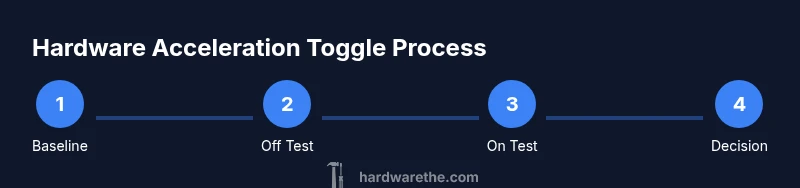
Check prerequisites and establish a baseline
Verify you have admin access, current drivers, and a representative workload. Record baseline observations for performance, temperature, and stability without toggling hardware acceleration.
Tip: Document the baseline so you can compare changes accurately. - 2
Test acceleration off with typical tasks
Run your usual tasks with hardware acceleration disabled. Note any differences in smoothness, CPU utilization, and stability across apps.
Tip: Use the same tasks in the exact same order to keep results valid. - 3
Enable hardware acceleration in key apps/settings
Toggle the option in the primary apps you use most (browser, editor, video player) and in system graphics settings if applicable. Restart affected applications to apply changes.
Tip: Always restart after changing a toggle to ensure the new path is engaged. - 4
Run representative tasks again
Repeat the same tasks with acceleration enabled. Compare to the baseline to identify improvements or regressions.
Tip: Pay attention to long-running tasks as some issues appear after extended use. - 5
Compare results and decide on final setting
Choose the state that delivers smooth visuals and reliable operation without crashes or glitches for your workload.
Tip: If results vary by app, consider per-app toggles rather than a universal switch. - 6
Create a rollback plan if things go wrong
Know how to revert to the previous driver or toggle state if issues arise after updates or changes.
Tip: Keep a short written plan and a quick-access restore point for safety.
FAQ
What is hardware acceleration and what does it do?
Hardware acceleration uses the GPU and other dedicated hardware to handle graphics, video tasks, and compute workloads instead of the CPU. This can improve rendering speed, video decoding, and overall responsiveness, but results depend on the hardware and software involved.
Hardware acceleration shifts work to the GPU, which can make things feel faster, but its benefits depend on your hardware and the apps you use.
Is it safe to enable hardware acceleration on a laptop?
Enabling hardware acceleration is generally safe and can improve performance. However, it may increase heat and affect battery life on some laptops, so monitor temperatures and power usage after enabling it.
It's usually safe, but watch for heat and battery changes on laptops.
Why would acceleration cause glitches after enabling it?
Glitches can occur due to driver bugs, incompatible hardware, or bugs in a specific application. If you see issues, test with acceleration off and consider updating drivers or selecting per-app toggles.
Sometimes drivers or apps don’t play nicely with acceleration; testing both states helps identify the cause.
Should I toggle hardware acceleration per app or system-wide?
If possible, test per app since different workloads benefit differently. Some systems also allow a global setting, but per-app toggles provide finer control over stability and performance.
Usually per app is best; some systems offer a global switch, but per-app control is more precise.
How can I tell if acceleration improves performance?
Run the same tasks with acceleration on and off, observe frame rates, responsiveness, and stability, and compare results. Consistent improvements across tasks indicate a positive impact.
Test with the same tasks and compare frame rates and stability to see if it helps.
Do all apps support hardware acceleration?
No. Some apps may not use acceleration even if the setting exists, and some may have their own internal toggles with different behavior.
Not all apps honor acceleration; some ignore it entirely.
What first steps should I take if issues appear after enabling acceleration?
Reproduce the issue, roll back the toggle, ensure drivers are current, and test with a clean workload. If problems persist, consider driver reinstallation or hardware checks.
If issues show up, revert the change, update drivers, and test again; consider hardware checks if needed.
Watch Video
Main Points
- Test both states with your real workloads.
- Keep drivers current and monitor temps during testing.
- Document results to guide future changes.
- Adopt app- or workload-specific toggles if needed.