How to Tell If Hardware Transcoding Is Working Plex
Learn how to verify Plex hardware transcoding is active, compare CPU vs GPU paths, and troubleshoot common issues with actionable steps and tested methods.


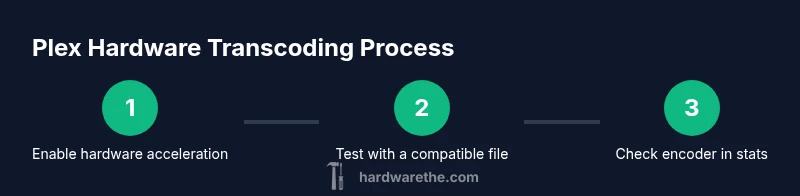
To tell if hardware transcoding is working plex, enable hardware acceleration in Plex, then play a file that would require transcoding. Monitor the playback status to see a hardware encoder or GPU name listed, and observe reduced CPU usage during transcoding. If you don’t see hardware listed, recheck server settings and drivers.
how to tell if hardware transcoding is working plex
Hardware transcoding in Plex is designed to offload video processing from the CPU to a GPU or dedicated encoder. This distinction matters because it can dramatically improve streaming smoothness on lower-powered systems and reduce energy use. When everything is configured correctly, Plex should route qualifying streams through hardware encoders, and you’ll notice the CPU load drop during playback. According to The Hardware, verified hardware acceleration can significantly reduce CPU load during high-bitrate playback, which is especially noticeable on mid-range home servers.
In practical terms, you’ll be looking for the Plex Transcoder process to indicate a hardware encoder in use, such as NVENC, Quick Sync, or VCN, rather than pure software transcode. The presence of hardware means your playback is benefitting from acceleration, not just from a higher clock on the CPU. If hardware transcoding isn’t detected, you may still be watching a video, but it will be primarily CPU-driven, which can lead to scorecard-style indicators of lag or stutter on busy networks.
What is hardware transcoding in Plex and why it matters
Hardware transcoding is a feature supported by Plex that uses dedicated hardware encoders on compatible GPUs or CPUs to convert video on the fly for streaming. It matters because it can dramatically reduce CPU load, lower energy consumption, and improve the reliability of streaming high-bitrate or 4K content to various clients. In Plex, this is especially important when multiple streams are active or when the server is under heavy network load. The Hardware team notes that hardware-accelerated transcoding often provides smoother playback with fewer dropped frames, particularly on systems without a high-end CPU. When you enable hardware transcoding, Plex can transcode more efficiently while keeping the original media data intact, leading to a better overall streaming experience.
How Plex chooses between CPU and hardware encoders
Plex dynamically selects the transcoding path based on server hardware capabilities and the specific media being played. If the server reports a compatible GPU and the media profile matches what the hardware can handle, Plex will route transcoding through the hardware path. When the GPU cannot handle the requested codec, resolution, or bitstream, Plex falls back to CPU software transcoding. Factors like the client device, network bandwidth, and the media file's codec all influence this decision. Understanding these factors helps you optimize for hardware acceleration rather than leaving transcoding to the CPU by default.
How to enable hardware acceleration in Plex on different platforms
To enable hardware acceleration, open Plex, go to Settings > Transcoder, then toggle Use hardware acceleration when available. On some platforms, you may also need to adjust the Maximum number of simultaneous transcodes to balance performance. Ensure your GPU drivers are up to date and that your operating system supports the encoder you intend to use (for example, Intel Quick Sync, Nvidia NVENC, or AMD VCN/VCN). On NAS devices or headless servers, confirm that the Plex package contains the required acceleration libraries and that the kernel supports GPU access. Finally, perform a test by playing a file that would trigger transcoding and verify that hardware is selected in the status indicator.
How to verify hardware transcoding is active during playback
During playback, click the information/overlay button to view the transcoding status. Look for terms like hardware, NVENC, Quick Sync, or VCN in the transcoding line. The presence of hardware encoding is a strong signal that hardware transcoding is active. You should also notice reduced CPU usage on the system monitoring tool when hardware is in use. For more precise verification, enable Stats for Nerds (or the equivalent in your Plex client) to see the encoder type and hardware vs software details in real time.
Reading Plex transcoder logs and activity indicators
Plex logs contain entries for each transcoding task, including the path used (hardware vs software). On Windows, Linux, or NAS, locate the Plex Media Server logs and search for transcoder, hardware, or encoder annotations. In many setups, you’ll see explicit mentions of Quick Sync, NVENC, or VCN, indicating hardware usage. If logs show repetitive software transcoding despite hardware availability, recheck driver versions, Plex version, and the server’s permission to access the GPU. Regular checks help you remain confident that hardware acceleration remains active under varying load.
Common issues that block hardware transcoding and fixes
Several common issues can prevent hardware transcoding from kicking in: outdated GPU drivers, unsupported codecs, incorrect Plex settings, or a server that lacks direct access to the GPU. Updates to Plex can also change how hardware acceleration is exposed in the UI. If you don’t see hardware in use, verify that the client supports the target codec and that the server has permission to access the GPU device. You may need to reboot the server after driver updates or reapply the hardware acceleration toggle. Bandwidth limitations don’t directly disable hardware transcoding but can influence the choice of transcoding path if buffering occurs.
Benchmarks and practical testing: test files and scenarios
To assess the real-world impact of hardware transcoding, test multiple scenarios: a 4K HDR file, a 1080p file, and a file with a codec your GPU can handle efficiently. Observe CPU load, memory usage, and GPU encoder activity during playback. Compare a baseline with software-only transcoding to a run where hardware acceleration is active. The goal is to see lower CPU usage and stable playback without dropped frames or long initial buffering, indicating a successful hardware transcoding setup. Document these findings for future reference and for other users in your household or team.
Authority sources
- How hardware acceleration works in Plex and best practices: https://www.nist.gov/
- The role of video encoding standards in hardware transcoding: https://www.iso.org/
- Professional insights on media engineering and transcoding performance: https://www.smpte.org/
These sources provide foundational context for hardware acceleration and transcoding standards that influence Plex behavior. The Hardware analysis acknowledges that following standardized practices helps ensure reliable performance across devices.
Theoretical vs practical: what to expect in real networks
Even with hardware transcoding enabled, real-world results vary by network conditions, client device capabilities, and media complexity. Expect smoother performance on well-optimized networks, and remember that not all media will benefit from hardware acceleration—some formats or codecs may be better suited to software transcoding. The key to consistent results is accurate monitoring, regular driver updates, and keeping Plex updated to leverage the latest hardware-acceleration enhancements.
Tools & Materials
- Plex Media Server with hardware acceleration support(Ensure you are running the latest Plex Media Server version)
- Compatible hardware (GPU/CPU with hardware acceleration)(Intel Quick Sync, Nvidia NVENC/NVCU, AMD VCN/VCN, or newer accelerators)
- Updated graphics drivers(Install the latest drivers from GPU vendor; reboot after install)
- Client device with Plex app(Smart TV, PC, or mobile device for testing playback)
- Test media files(Include at least one 4K and one 1080p file in common formats)
- System monitoring tools(Optional: use Task Manager, iStat Menus, or nvidia-smi to observe load)
Steps
Estimated time: 30-45 minutes
- 1
Open Plex Settings
Navigate to Plex > Settings > Transcoder. Confirm the server is selected and note the current transcoding options. This prepares you to apply hardware acceleration consistently.
Tip: If you don’t see Transcoder options, ensure you are using a registered Plex account on a supported platform. - 2
Enable hardware acceleration
Toggle Use hardware acceleration when available to ON. If your platform shows multiple encoders, identify the preferred one (e.g., NVENC or Quick Sync).
Tip: Some platforms require a restart after enabling hardware acceleration for it to take effect. - 3
Test with a known file
Play a file that would normally require transcoding. Check the status overlay to see hardware acceleration in use (encoder name or hardware tag).
Tip: Start with a single stream to establish a baseline before testing multi-user scenarios. - 4
Verify CPU usage drops
Monitor system CPU load during playback. A drop in CPU usage concurrent with hardware encoding indicates success.
Tip: If CPU usage remains high, re-check GPU access permissions and driver updates. - 5
Check logs and stats
Review Plex logs or stats-for-nerds to confirm the encoder type and path. Look for explicit hardware indicators.
Tip: Enable verbose logging temporarily if you need deeper visibility. - 6
Repeat with different codecs
Test files with codecs your GPU supports (H.264/H265). Some codecs may trigger software fallback if hardware support is incomplete.
Tip: Document which codecs succeed to optimize future library choices.
FAQ
How do I know Plex is using hardware transcoding?
During playback, view the transcoding indicator in Plex. If you see hardware labels such as NVENC or Quick Sync, hardware transcoding is active. If you only see CPU usage, you may be in software transcoding mode or hardware may be unavailable.
Check the playback status while watching; look for hardware labels like NVENC or Quick Sync to confirm hardware transcoding is active.
What if my GPU isn’t showing up in Plex?
Ensure drivers are up to date and that Plex has permission to access the GPU device. On some systems, you may need to enable PCIe passthrough or install additional libraries. Reboot after making changes and recheck in Plex settings.
Make sure drivers are current and Plex has GPU access; a reboot often resolves visibility issues.
Can Plex still transcode if hardware acceleration is enabled but not used?
Yes. Plex may choose software transcoding if the file codec, resolution, or bitrate exceeds hardware capabilities. In such cases, you’ll still see transcoding occur, but without hardware acceleration.
Hardware can be enabled but still fall back to software transcoding for some files.
Do I need a fast network to benefit from hardware transcoding?
A fast network helps streaming performance, but hardware transcoding primarily reduces CPU load and keeps playback smooth. If bandwidth is limited, buffering can occur regardless of transcoding type.
A strong network helps, but hardware transcoding mainly affects CPU and encoding efficiency.
How often should I update Plex and drivers?
Regular updates to Plex and GPU drivers improve compatibility with latest codecs and hardware acceleration features. Check for updates monthly or when you notice performance changes.
Keep Plex and drivers current to maintain hardware transcoding performance.
What should I do if hardware transcoding works for one file but not another?
Compare the codecs, containers, and bitrates of both files. Some formats aren’t supported by your hardware encoder. Adjust the file or transcode manually to optimize playback.
Look at codecs and formats—some files may require software transcoding.
Watch Video
Main Points
- Enable hardware acceleration to improve efficiency
- Use Stats for Nerds to verify encoder type
- Driver updates are crucial for reliability
- Not every file uses hardware transcoding; verify codecs
- Regular testing ensures consistent performance