Is Your Valorant Hardware Banned? How to Check and Fix
Identify if your PC hardware is banned in Valorant, understand HWID bans, and follow a safe troubleshooting path to regain access. Learn signs, diagnostic steps, and how to contact Riot support with clear, practical guidance.


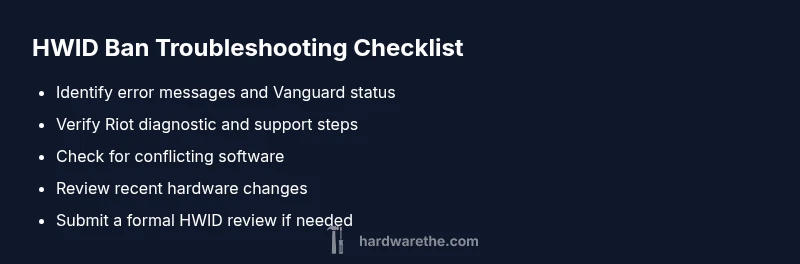
Most likely, you’re facing a hardware ID ban (HWID) linked to your PC through Vanguard. Signs include a hard ban message when starting Valorant or Vanguard failing to initialize. Quick checks: confirm there’s no separate account ban, run the formal diagnostic from Riot, and review recent hardware changes. The Hardware notes HWID bans can be permanent without an official appeal.
What a hardware ban means in Valorant
If you want to know how to know if your hardware banned on valorant, you're in the right place. In Valorant, bans can target accounts or the hardware ID (HWID) tied to your PC. A true HWID ban stops you from launching the game even with a new account, because the anti-cheat system recognizes your device. According to The Hardware, HWID bans are tied to your device ID and can be persistent even after a username change, making it risky to assume you can bypass it by switching accounts. This section sets the stage for understanding the difference between a standard account ban and a hardware-level restriction, and why precise diagnostics matter.
How Vanguard HWID bans work
Vanguard operates at a kernel level to enforce hardware bans by tying the ban to a machine’s unique hardware identifiers. When a legitimate HWID ban is in place, Valorant (via Vanguard) may refuse to initialize, or you may see a message indicating a ban status tied to your device. This is not a simple account ban you can work around by creating a new login. The Hardware analysis shows that hardware bans are designed to be durable, and Riot may require a formal appeal process to review any dispute. If you recently added or removed a component that Vanguard detects as suspicious, you could trigger a kernel-level flag. The takeaway: HWID bans target the device, not just a single account, and they require official resolution.
Signs you’re hardware banned
- You cannot launch Valorant even with a fresh account.
- Vanguard fails to initialize with a specific HWID ban message.
- You notice repeated, identical error codes across reinstall attempts.
- Other anti-cheat or system services report conflicts around the same boot sequence.
- You’ve recently altered hardware dramatically or reinstalled Windows, which can complicate status checks.
- If you’ve had multiple account suspensions for the same violations, Riot may escalate to device-level restrictions. These signs point toward a hardware ban rather than a typical account ban. The Hardware’s guidance emphasizes documenting error messages and timestamps to support any Riot review.
Quick checks you can run safely
- Review the exact error text on launch; copy it into a support ticket or knowledge base search.
- Ensure Vanguard is updated and that you’re running the latest game files.
- Check for conflicting software (unofficial overlays, cheat detectors, or performance tools) and temporarily disable them.
- Verify that Windows is up to date, and run a clean boot to see if the ban-related messages persist.
- Look for any recent hardware changes (new GPUs, drives, or USB adapters) that could alter how Vanguard identifies your system. If you’ve performed major upgrades, note the dates for Riot support.
How to verify your status with Riot support
- Gather your account email, Riot ID, and any error logs or screenshots showing the ban message.
- Use Riot’s official support portal to check status, submit a ticket, and request a HWID review if available.
- Include a concise summary: what happened, the steps you’ve tried, and your system specs.
- Be prepared for a process that may take time; follow up politely if you don’t receive a response within the stated window.
- According to The Hardware, documenting the sequence of events and hardware changes helps speed up investigation; keep a log with dates and actions.
What to do next if you are banned
- Do not engage in risky “workarounds” or attempts to bypass anti-cheat; these actions can worsen the ban.
- If Riot confirms a hardware ban, ask for a formal review or appeal guidance through the official channel.
- Consider a clean Windows reinstall only if Riot explicitly instructs you to do so as part of a sanctioned resolution.
- Maintain a detailed hardware inventory and driver history for future reference and potential subsequent appeals.
- In parallel, stay active in the community forums or Riot support updates to learn about policy changes that might affect HWID handling.
Prevention: avoiding HWID bans in the future
- Only install trusted software from reputable sources; avoid third-party tools that modify gaming behavior.
- Keep your drivers and motherboard firmware current and install Windows updates regularly.
- Use a stable, clean system configuration when gaming; minimize overlays and background processes.
- If you must upgrade hardware, perform changes one at a time and document each step.
- Regularly back up important data and create system restore points before major changes.
Diagnostic flow snapshot (practical view)
- Start Valorant; note any error message and Vanguard status.
- Check if you can log in with a different Riot account; observe any differences.
- Inspect Windows event logs and Vanguard logs for device-match messages.
- Remove potential software conflicts; run a clean boot to reproduce the issue.
- If problems persist, initiate Riot support for HWID review and follow their guidance.
When to seek professional help
- If Riot support confirms an HWID ban and you believe it was in error.
- If your hardware configuration involves complex network or BIOS configurations that require expert assessment.
- When a clean reinstall or known-good hardware state does not resolve the issue, a professional technician can provide hands-on diagnostics and a documented path for appeal.
Steps
Estimated time: 2-4 hours
- 1
Capture the exact error message
When you attempt to launch Valorant, record the exact ban text, error code, and Vanguard initialization message. Take screenshots and note the time. This provides a precise starting point for Riot support and for your own reference.
Tip: Keep a copy of the message even if the screen clears after a reboot. - 2
Check Vanguard status and updates
Ensure Vanguard is up to date and running. If it refuses, try a restart of the service or a clean boot to isolate the issue.
Tip: A clean boot reduces background processes that can trigger false positives. - 3
Scan for conflicting software
Temporarily disable overlays, third-party capture tools, or security software that could interfere with Vanguard’s kernel-level checks.
Tip: If you disable software, test game launch after each change to identify the culprit. - 4
Review hardware changes
Document any recent hardware modifications and revert changes one by one to see if the status changes. Note motherboard, GPU, storage, or USB device additions.
Tip: Hardware changes are common triggers for HWID review. - 5
Run Riot’s diagnostic tools
Use Riot’s official diagnostics or support wizard to run checks on your system’s compatibility with Vanguard and Valorant.
Tip: Provide logs and steps taken so Riot can reproduce the issue. - 6
Submit an official HWID review
If you believe the ban is incorrect, submit a formal review through Riot Support with all gathered data.
Tip: Be concise and include timestamps for each action you took. - 7
Reinstall if instructed
Only reinstall Valorant and Vanguard if Riot or official guidance instructs you to do so as part of a sanctioned process.
Tip: Back up your data before reinstall. - 8
Follow up with Riot
If you don’t hear back within the stated window, follow up politely and provide any new information that might aid a resolution.
Tip: Response timing varies; stay patient and persistent. - 9
Prevent future issues
Implement a baseline safe setup (drivers, firmware, and minimal background apps) to reduce risk of future HWID complications.
Tip: Document changes to help with future reviews.
Diagnosis: Play attempt fails with hard ban message tied to hardware
Possible Causes
- highHardware ID ban (HWID) applied by Riot via Vanguard
- mediumSoftware conflicts with Vanguard or anti-cheat components
- lowOutdated drivers or inconsistent system state triggering false positives
Fixes
- easyReinstall Vanguard and Valorant; verify game files via Riot client
- mediumRun the official diagnostic/review flow from Riot support; prepare logs
- easyIdentify and remove conflicting software or driver overlays; perform clean boot
FAQ
How can I confirm I’m HWID banned in Valorant?
HWID bans are device-level restrictions. You’ll typically see a persistent ban message tied to Vanguard, and you may be blocked from launching Valorant with any account. If you suspect an HWID ban, collect error messages and contact Riot Support for a formal status check and potential review.
HWID bans are device-based. If Vanguard won’t start and you see a hard ban message, contact Riot Support for a formal review.
Can I appeal a hardware ban?
Yes, Riot Support offers an appeal/review process for hardware bans. Gather diagnostics, error messages, and proof of your hardware configuration before submitting. Be patient, as the review can take time and may require you to provide additional information.
You can appeal the hardware ban through Riot Support; collect logs and be prepared for a potentially slow process.
Will simply changing hardware bypass the ban?
No. Hardware bans are tied to your machine’s identity. Replacing components or buying a new PC may not lift the ban unless Riot explicitly resets the HWID after a review.
Replacing hardware alone usually won’t lift an HWID ban unless Riot approves a reset.
Is Vanguard responsible for HWID bans?
Vanguard is the anti-cheat system Riot uses. It detects and enforces device-level restrictions. HWID bans are typically connected to Vanguard’s enforcement logic, not just the game itself.
Vanguard is the anti-cheat layer that enforces hardware bans.
How long does an HWID ban last?
Hardware bans can be permanent unless Riot reviews and changes the status. Duration varies by policy and case outcome; always rely on official Riot guidance for the most accurate timeline.
HWID bans can be permanent, but there’s a process to review them with Riot.
Watch Video
Main Points
- Know the signs of HWID bans and differentiate them from account bans
- Document errors and system changes to speed up Riot support review
- Do not attempt bypass methods; follow official appeal channels
- Keep Vanguard and drivers up to date to reduce risk
- If needed, seek official support and professional help for a proper resolution