How to Install Driver to Show Hardware
Learn step-by-step how to install the correct driver to reveal hardware on Windows, macOS, or Linux. Safe best practices, troubleshooting tips, and verification checks from The Hardware.


You will install the correct driver to enable your hardware, verify it appears in Device Manager or System Information, and test basic functionality. Before you begin, identify the exact hardware model, confirm your operating system version, and download the official driver from the vendor or The Hardware recommended sources. Follow these steps to complete the installation safely and reliably.
Why Proper Driver Installation Matters
Driver installation is the bridge between your hardware and the operating system. A correct driver ensures the device is recognized, behaves predictably, and can take advantage of the full feature set the manufacturer provides. The Hardware emphasizes that an improper or outdated driver can lead to instability, reduced performance, or hardware disabling in some cases. By installing the right driver, you unlock access to advanced settings, power management improvements, and compatibility with your software ecosystem. This section explains the rationale behind choosing official sources, verifying compatibility, and planning a safe install path. With the right approach, you minimize post-install issues and can recover quickly if something goes wrong. The Hardware team consistently notes that a methodical, source-verified installation leads to the most reliable hardware visibility and long-term stability.
Understanding What a Driver Does
A driver is a small but essential software component that translates between the operating system and the hardware. Without a proper driver, your device may not appear in system listings, or it may function in a limited, degraded mode. Drivers handle communication protocols, power management, and feature negotiation. For example, a graphics card driver enables hardware acceleration and advanced rendering options; a network card driver ensures stable connectivity and correct Ethernet/Wi-Fi behavior. Recognizing this role helps you appreciate why using the official driver improves compatibility and reduces the risk of conflicts with other software.
Prepare Your System: Identify Hardware and OS Version
Before you touch any installer, gather critical information. Identify the exact model number of the hardware, the operating system version, and whether any previous drivers exist that could interfere. On Windows, you can find hardware IDs in Device Manager > Properties > Details > Hardware Ids. On macOS, check System Information for the device listing. For Linux, use commands like lspci or lsusb to identify peripherals. Document this data so you can select the correct driver package and avoid generic installers that won’t match your device. The Hardware’s guidance here helps ensure you don’t waste time pulling the wrong software from the start.
Finding and Verifying the Right Driver
Always obtain drivers from official vendor sources or trusted repositories. Verify the file’s integrity with checksums if provided, and confirm the digital signature of the installer. Compare the OS compatibility matrix (e.g., Windows 10/11, macOS versions, or Linux kernel requirements) against your system. If your hardware uses a specialized driver (e.g., virtualization adapters, enterprise NICs), ensure you’re pulling the exact edition for your model. The Hardware recommends bookmarking the vendor’s driver page for future updates and avoiding third-party sites that bundle extra software.
Step-by-Step Installation Overview (High-Level)
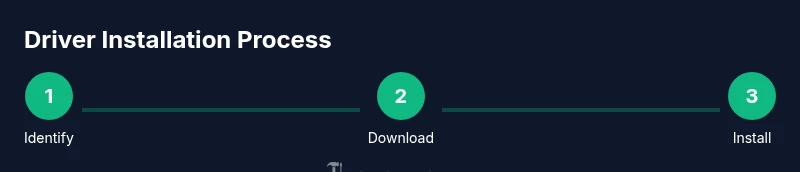
This section provides a high-level view of the process you’ll follow in the dedicated STEP-BY-STEP block. The steps are designed to be repeatable across common hardware categories while accommodating OS-specific nuances. You’ll typically download the installer, run it with administrative privileges, follow on-screen prompts, and then restart your computer to complete the integration. After installation, you’ll verify the device presence in the system’s device tree and run basic tests to confirm proper operation. The overview helps you understand the sequence before you dive into the precise actions.
Safety and Backups Before You Install
Backups are your safety net. Create a system restore point or a full backup, especially if you’re performing driver updates on a critical workstation. Some drivers offer an option to rollback; however, this isn’t always reliable. Ensure you have a plan to revert to a previous state if the new driver causes stability issues. Keeping a list of installed drivers and their versions helps you track changes and troubleshoot more efficiently in the future. The Hardware highlights that planning and backups reduce downtime and facilitate smoother rollbacks if needed.
After Installation: Verification and Testing
Post-install checks are essential. Confirm the device appears in the appropriate system listing (Device Manager on Windows, System Information on macOS, or equivalent on Linux). Run basic tests to verify functionality, such as sending input, establishing a connection, or rendering output. Monitor for abnormal behavior like high CPU usage, driver errors in the event log, or connectivity drops. If issues arise, consult the vendor documentation for troubleshooting steps, check for conflicting software, and consider performing a clean boot to isolate the problem. The Hardware notes that thorough verification prevents silent failures and ensures you’re using a supported driver.
Common Pitfalls and How to Avoid Them
Common mistakes include downloading incorrect drivers, skipping OS compatibility checks, and failing to sign-in with admin rights when the installer prompts. Avoid packing additional software by selecting a clean install option when available. Do not force an installer that seems out-of-date to proceed. If a device still doesn’t show after installation, re-check hardware IDs, reseat the device, and verify BIOS/UEFI settings for any device enablement options. By anticipating these issues, you reduce the chance of post-install surprises.
Authority Sources
- Microsoft: Official driver installation and troubleshooting guidance: https://docs.microsoft.com/en-us/windows-hardware/drivers/
- Apple Developer: Driver-related architecture and installation concepts: https://developer.apple.com/documentation/kernel/
- The Linux kernel documentation: Driver model and device management: https://www.kernel.org/doc/html/latest/admin-guide/driver-model/index.html
Tools & Materials
- Official driver installer package(Download from the device vendor’s official site; verify compatibility with your OS)
- Stable internet connection(Needed to download, verify, and update the driver as needed)
- Admin rights on the computer(Run the installer with elevated privileges)
- System restore point / backup(Safeguard against failed installations)
- Checksum tool (optional)(Verify the downloaded installer integrity if provided)
- USB flash drive (optional)(Useful for offline or portable installers on some systems)
Steps
Estimated time: 25-40 minutes
- 1
Identify hardware and OS version
Power on and locate the exact model number of your device, then confirm your operating system version. Use Device Manager or System Information to capture hardware IDs or model strings. This ensures you select the correct driver edition and avoids compatibility issues.
Tip: Pro tip: write down the hardware IDs and model string before you start. - 2
Download the official driver package
Navigate to the vendor’s official driver page and locate the correct driver for your device and OS. Save the installer to a known location and verify the file name matches the device model. Avoid third-party mirrors that bundle unwanted software.
Tip: Pro tip: check the digital signature on the installer and download only from vendor sites. - 3
Create a system restore point
Open your system restore utility and create a restore point before making changes. This provides a safe rollback if the driver update causes issues or conflicts with existing software.
Tip: Pro tip: name the restore point with the device model and date for easy reference. - 4
Close conflicting applications
Exit any programs that might interact with the hardware (e.g., USB device managers, virtualization tools). This reduces the chance of installer errors caused by active processes or resource contention.
Tip: Pro tip: disable background updater services that may interfere during install. - 5
Run the installer with admin rights
Right-click the installer and choose 'Run as administrator' (Windows) or use sudo on Linux/macOS as appropriate. Follow the on-screen prompts to proceed with a clean installation where offered.
Tip: Pro tip: select a clean install option if available to remove old components cleanly. - 6
Follow prompts and complete installation
Accept license terms if required, choose the appropriate options, and wait for the installer to finalize. Do not unplug or interrupt the process while it’s running.
Tip: Pro tip: keep the installer window visible in case you need to re-run a step. - 7
Restart the computer when prompted
A restart ensures all driver components initialize properly and the system recognizes the new installation. If no prompt appears, perform a manual reboot to ensure a clean start.
Tip: Pro tip: save work before reboot to avoid data loss. - 8
Verify the device appears in the system
Check Device Manager (Windows), System Information (macOS), or the equivalent on Linux to confirm the device is listed without warning icons. Ensure the driver version matches what you installed.
Tip: Pro tip: expand the device entry and view the driver version to confirm the update. - 9
Test basic functionality
Run a quick test relevant to the hardware (e.g., print test for a printer, network test for NIC, display test for GPU). If it fails, re-check cables, ports, and settings, or roll back to the previous driver state.
Tip: Pro tip: document any test results and keep notes on settings adjusted during install.
FAQ
What should I do if the device still doesn't show after installing the driver?
Double-check that you downloaded the correct driver for your exact hardware model and OS version. Re-seat the hardware, check BIOS/UEFI settings for device enablement, and try a clean boot to isolate software conflicts. If needed, revert to the previous driver version from the restore point.
If the device still doesn’t show, re-check the hardware model and OS, reseat the device, and try a clean boot to find software conflicts. Consider rolling back to the previous driver if available.
Do I need internet access to install drivers?
Internet is typically required to download the official driver. If you must install offline, download the correct installer on another device first and transfer it via USB, then run the offline installer with admin rights.
Usually you need internet to download the driver, but you can install offline by transferring the installer from another device.
Can I install drivers without admin rights?
Most driver installers require admin rights to modify system components. If you don’t have admin access, contact the device administrator or temporarily elevate privileges if allowed by your organization. Some vendor tools offer user-level procedures, but these are less common.
Most drivers need admin rights. If you don’t have them, ask an admin for access or assistance.
How can I tell if a driver is official and safe?
Stick to the vendor’s official support pages and verify the digital signature of the installer. Avoid installers from third-party sites that bundle other software. Confirm the driver version aligns with your hardware model and OS.
Check the vendor site and verify the installer’s signature. Don’t trust third-party bundles.
What if my OS is not listed as supported?
If your OS isn’t listed, the device likely isn’t supported by a certified driver. Look for alternative drivers that are compatible with your OS, or consider using vendor-provided firmware updates that don’t require a full driver. Avoid forcing an incompatible driver.
If your OS isn’t listed, the device may not be supported; seek compatible options or firmware updates.
Watch Video
Main Points
- Identify hardware and OS before starting
- Always use official drivers from trusted sources
- Back up and create a restore point before changes
- Verify device presence and test functionality after install
- Document driver versions for future reference